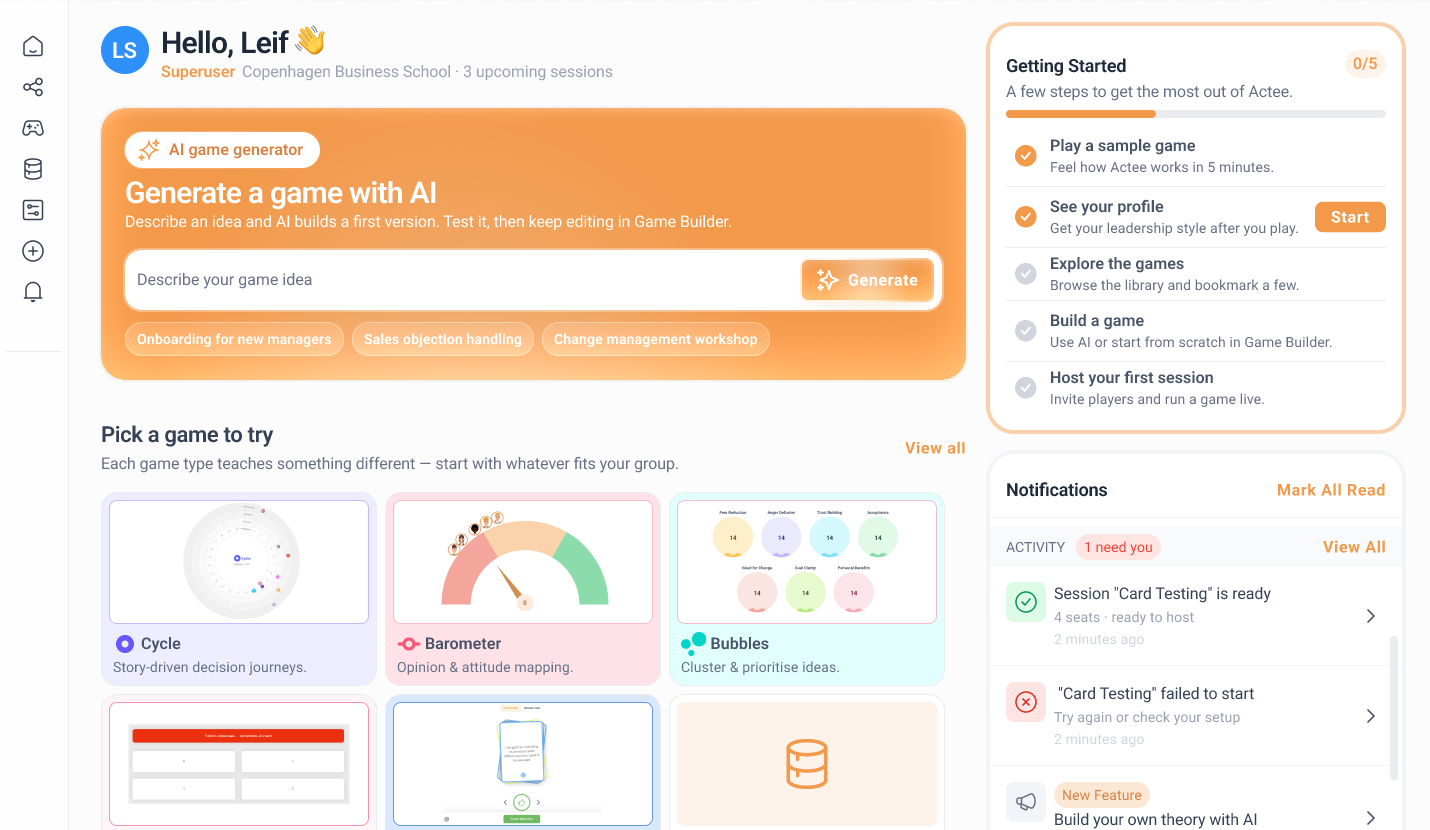
New Superuser dashboard
The new Superuser dashboard is a personalized home screen we hope helps your quickly understand where to start and what to do next.
Overall, the new dashboard is designed to help Superusers move faster from login to action — whether that means creating a game, hosting a session, exploring the platform, or learning more about Actee’s tools.
We hope it will help you experience your Superuser work faster, while also helping you understand the platform better to gain more value from your Actee® subscription.


AI game generator (Top of page)
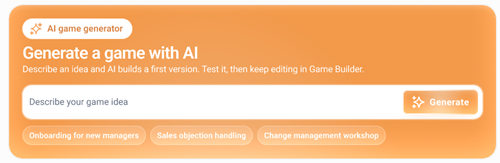
You can now start creating a game directly from your dashboard using the AI game generator.
Simply describe your game idea and select Generate. Actee will create a first version that you can test and continue editing in Game Builder.
You can also start with one of the suggested ideas, such as:
- onboarding for new managers
- sales objection handling
- a change management workshop
This gives you a faster way to move from an idea to a playable first draft.
if you want to know more to get ready to design games for your clients or learners we have added a getting started function in the lower part of the dashboard.
Game Builder guides
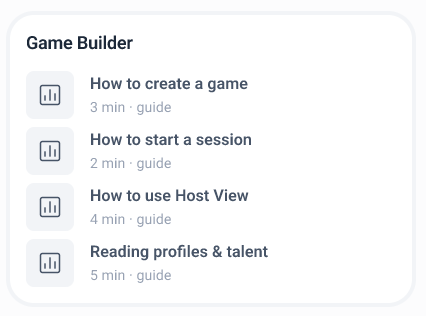
This panel is a quick guide section for Game Builder.
It contains short learning guides such as:
- How to create a game
- How to start a session
- How to use Host View
- Reading profiles & talent
Each guide shows an estimated duration, making it easy for Superusers to find fast help and learn key actions in just a few minutes.
Purpose:
To support self-service learning and reduce the time it takes for Superusers to become confident in the platform.
Getting started (Top right on page)
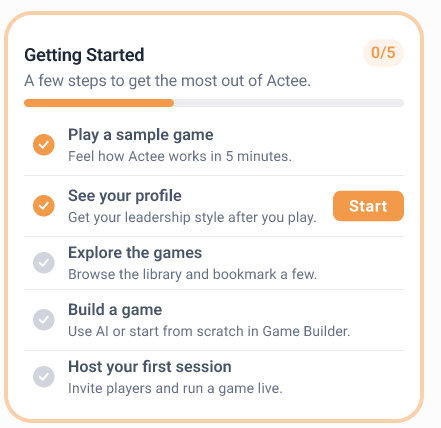
The Getting Started checklist guides you through the most important first steps in Actee.
You are encouraged to:
- play a sample game
- see your profile
- explore the game library
- build your first game
- host your first session
Your progress bar shows how far you have come, and the action buttons take you directly to the next step. Skip it if you already is a specialist or use the bullets to recap your knowledge when you need it.
Pick a game to try (middel page under the game builder)
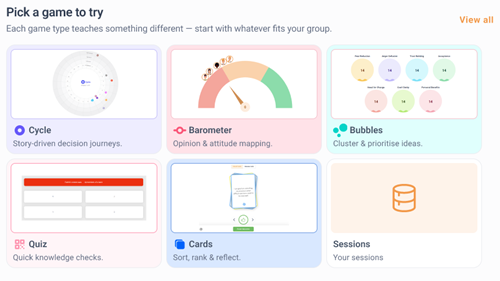
This section helps you explore the different types of games available in Actee when you mouse over there is an option to see a video explaining the tool.
You can choose between:
- Cycle – take players through story-driven decision journeys
- Barometer – map opinions and attitudes
- Bubbles – cluster and prioritise ideas
- Quiz – create quick knowledge checks
- Cards – sort, rank and reflect
- Sessions – access your existing sessions
Start with the game type that best fits your group, topic or learning objective.
Notifications (Right side and the new bell in the menu right)
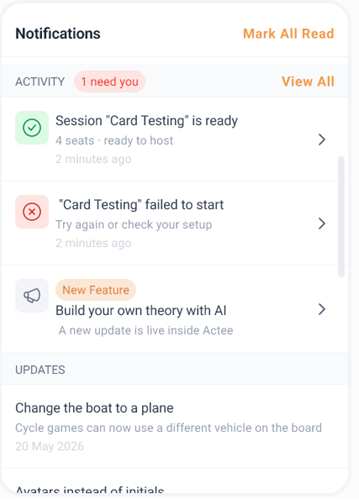
Your Notifications panel keeps you informed about activity that may need your attention.
Here, you can see:
- alerts requiring action from your side
- new feature announcements
- general platform updates
You can open each notification for more details or use Mark All Read when you have reviewed them.
Your games to play (Middle section on page scroll)
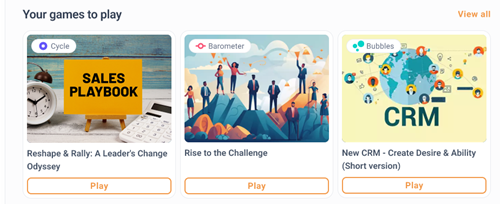
Here, you can see games that you have marked as favorite games, or move to ready games play.
Each game card includes what you already know from the games page.
View all tab gives you direct access to relevant games without having to search through the full library.
Tools (small section on the right side)
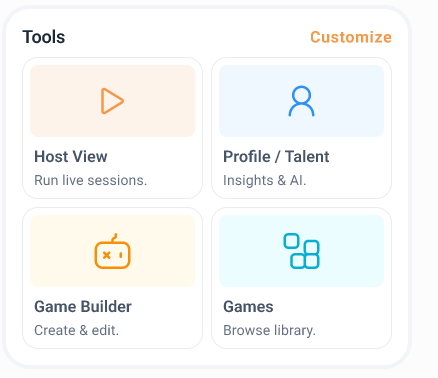
This section gives you quick access to the main tools you use in Actee, with a special focus on understanding your participants through their profiles:
Host View – run your live sessions and follow the participants’ progress. After the session, use the results to explore their individual profiles.
Profile / Talent – review participant profiles, discover patterns and strengths, and use AI-supported insights to better understand individuals and teams.
Game Builder – create and edit your games.
Games – browse the game library and find the right game for your next session.
We encourage you to explore the profiles connected to your Host View sessions. They can help you turn the game results into more meaningful conversations, feedback and development activities.
Grow your skills (under the games section after scroll)
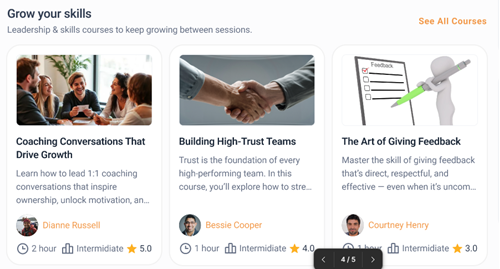
Here, you can continue developing your leadership and facilitation skills between sessions.
We are also developing a dedicated course function in Actee. Already today, you can create a more complete learning journey by adding extra content to a game session, such as:
- videos
- files or articles to read
- additional games or activities
- images and richer descriptions
When you combine several activities in one session, you can use Actee as a kind of consultant-focused LMS: a place where you structure learning content, guide participants through a journey, and connect preparation, activities, games and follow-up.
Each course card can show:
- a course image
- a title and short description
- the instructor’s name
- duration
- difficulty level
- rating
Examples include:
- Coaching Conversations That Drive Growth
- Building High-Trust Teams
- The Art of Giving Feedback
This area makes it easier for you to create and deliver more structured learning experiences while continuing to grow your own skills.
We hope you like the new dashboard as much as we do.
And remember: regular users and guests will continue to access the existing dashboard.
Looking ahead, once we have updated the profile section and related tools, we plan to create a new dashboard for regular users as well. This will focus on each user’s personal profile and bring together insights generated across all the games they have played.
let us know your feedback.
More updates This website uses cookies. You agree to the use of cookies by clicking on the page.
