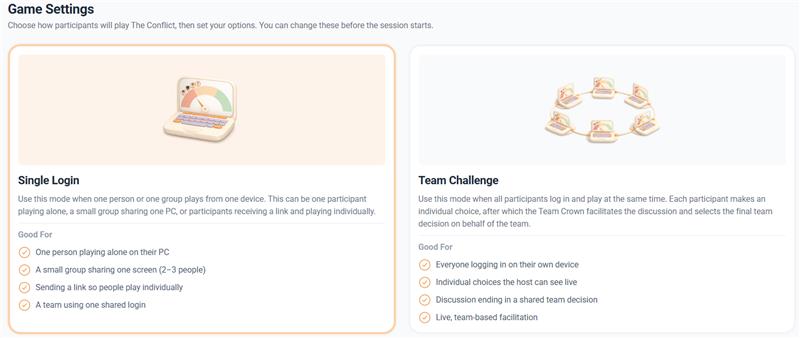
Setting up a session in Actee just got clearer!
We have made setting up a session in Actee easier and more flexible!
With the new Game Settings, you can choose how participants will play and adjust scoring to create the right experience for your session.


First things first: How will your participants play?
The new Game Settings step starts with one simple question: how will your participants play?
Choosing the right mode from the start means fewer unnecessary clicks and a smoother experience for both participants and facilitators.
Single Login: One device, one or more participants
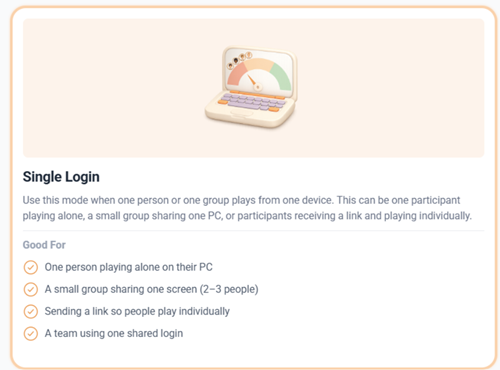
Single Login brings together the former Single Player and Battle Mode options in one flexible game mode.
Previously, the main difference between these options was whether players could see their scores. Now, you can simply choose how scores should be displayed using the new settings.
Single Login works great for:
• One participant playing alone
• A small group of 2–3 people sharing a screen
• A team using one shared login, similar to the old Battle Mode
• Sharing a link so people can play individually
You can choose whether players see their scores or play without seeing points. You can also decide whether they see only their own results or can view the scores of others.
Team Challenge: Everyone logs into their own device
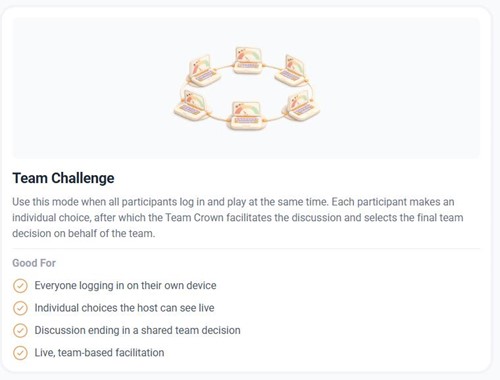
Choose Team Challenge for facilitated sessions where everyone logs in on their own device and makes individual choices in real time.
• Each participant makes their own choices first.
• The Team Crown leads the discussion and selects the team's final decision.
• It is ideal for facilitated, team-based learning.
More control over your session
Once you have selected your game mode, you can fine-tune the settings to suit your needs.
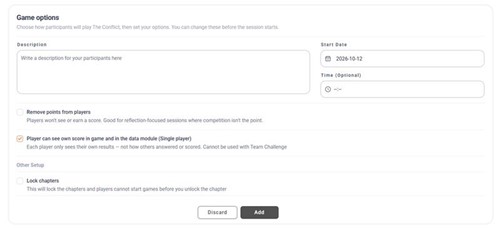
Game description: Set the scene
Add a description for your participants and choose a start date and, optionally, a start time. This helps you explain the purpose of the game and control when it can begin.
Hide points: Focus on reflection
Not every session needs a competitive element. You can now hide points from the player experience, making this a great option for reflection-focused sessions where learning and discussion take priority.
When enabled, players will not see their scores, and points will also be removed from their profile after gameplay. As a facilitator, you can still toggle this setting for individual chapters during the game.
Show only individual scores: Give players their own view
For Single Login, you can choose whether players see only their own scores and results, both during the game and in the Data Module. They will not see how others answered or scored.
This option is not available for Team Challenge.
Lock chapters: Control the pace
Keep chapters locked until you are ready for participants to continue. This gives you control over the pace of your session and when each new chapter becomes available.
Good to know
You can change point visibility and chapter lock settings while participants are playing.
If you change point visibility during a game, players may need to click Next Chapter before the change is reflected in their view. As a facilitator, you can still see points in the host view, just as before.
Ready to set up your next session?
Explore the new Game Settings step and discover how easy it is to tailor an Actee session to your participants and learning goals.
 This website uses cookies. You agree to the use of cookies by clicking on the page.
